 次
次
 人
人
准备工作
在此教程中,您将学习如何在Android应用中创建和使用进度条。
前提条件
- 已安装 Android Studio 4.1.1
- 具备 Java 的基础理解
- 完成您的第一个Android应用
- 30–60 分钟的空闲时间
学习内容
- 如何创建和配置进度条
- 如何在进度条中显示进度
- 如何处理进度条的事件
创建项目
- 项目名称:ProgressBar
- 包名:com.example.progressbar
- 如遇到问题,请参考您的第一个Android应用。
进度条
ProgressBar 用于向用户反馈某个耗时操作(下载、文件读写、计算等)的完成百分比。
支持两种表现模式:
- 确定模式(determinate)—— 显示具体进度(0‒max)。
- 不确定模式(indeterminate)—— 仅提示“正在跑”,不给出具体比例。
| xml属性 | 代码接口 | 功能 |
|---|---|---|
| android:indeterminate | setIndeterminate(boolean) | 设置是否为不确定模式 |
| android:max | setMax(int) | 设置最大进度值 |
| android:progress | setProgress(int) | 设置当前进度值 |
Style:
- ?android:attr/progressBarStyle
- ?android:attr/progressBarStyleHorizontal
Demo
界面设计
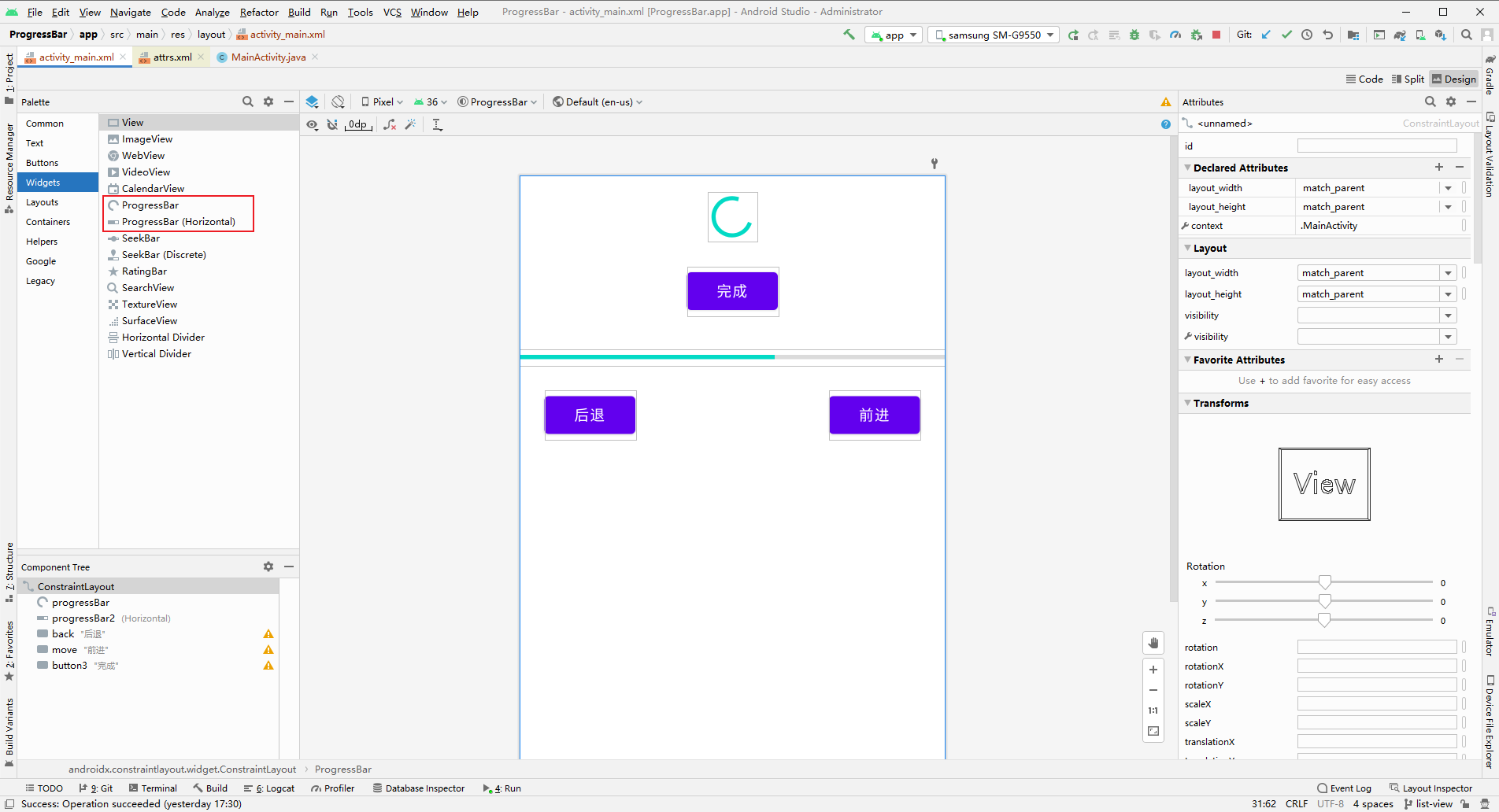
- 添加组件 ProgressBar 到布局文件中。
- ID: progressBar
- 添加组件 Button 到布局文件中。
- ID: button3
- text: 完成
- onClick: MainActivity->onClickDone
- 添加组件 ProgressBar (Horizontal) 到布局文件中。
- ID: progressBar2
- max: 100
- progress: 60
- 添加组件 Button 到布局文件中。
- ID: back
- text: 后退
- onClick: MainActivity->onClickBack
- 添加组件 Button 到布局文件中。
- ID: move
- text: 前进
- onClick: MainActivity->onClickMove
1
2
3
4
5
6
7
8
9
10
11
12
13
14
15
16
17
18
19
20
21
22
23
24
25
26
27
28
29
30
31
32
33
34
35
36
37
38
39
40
41
42
43
44
45
46
47
48
49
50
51
52
53
54
55
56
57
58
59
60
61
62
63
64
65
66
67
68
<?xml version="1.0" encoding="utf-8"?>
<androidx.constraintlayout.widget.ConstraintLayout xmlns:android="http://schemas.android.com/apk/res/android"
    xmlns:app="http://schemas.android.com/apk/res-auto"
    xmlns:tools="http://schemas.android.com/tools"
    android:layout_width="match_parent"
    android:layout_height="match_parent"
    tools:context=".MainActivity">

    <ProgressBar
        android:id="@+id/progressBar"
        style="?android:attr/progressBarStyle"
        android:layout_width="wrap_content"
        android:layout_height="wrap_content"
        android:layout_marginTop="16dp"
        android:max="100"
        android:progress="101"
        app:layout_constraintEnd_toEndOf="parent"
        app:layout_constraintStart_toStartOf="parent"
        app:layout_constraintTop_toTopOf="parent" />

    <ProgressBar
        android:id="@+id/progressBar2"
        style="?android:attr/progressBarStyleHorizontal"
        android:layout_width="match_parent"
        android:layout_height="wrap_content"
        android:layout_marginTop="32dp"
        android:max="100"
        android:progress="60"
        app:layout_constraintEnd_toEndOf="parent"
        app:layout_constraintStart_toStartOf="parent"
        app:layout_constraintTop_toBottomOf="@+id/button3" />

    <Button
        android:id="@+id/back"
        android:layout_width="wrap_content"
        android:layout_height="wrap_content"
        android:layout_marginStart="24dp"
        android:layout_marginLeft="24dp"
        android:layout_marginTop="24dp"
        android:onClick="onClickBack"
        android:text="后退"
        app:layout_constraintStart_toStartOf="parent"
        app:layout_constraintTop_toBottomOf="@+id/progressBar2" />

    <Button
        android:id="@+id/move"
        android:layout_width="wrap_content"
        android:layout_height="wrap_content"
        android:layout_marginTop="24dp"
        android:layout_marginEnd="24dp"
        android:layout_marginRight="24dp"
        android:onClick="onClickMove"
        android:text="前进"
        app:layout_constraintEnd_toEndOf="parent"
        app:layout_constraintTop_toBottomOf="@+id/progressBar2" />

    <Button
        android:id="@+id/button3"
        android:layout_width="wrap_content"
        android:layout_height="wrap_content"
        android:layout_marginTop="24dp"
        android:onClick="onClickDone"
        android:text="完成"
        app:layout_constraintEnd_toEndOf="parent"
        app:layout_constraintStart_toStartOf="parent"
        app:layout_constraintTop_toBottomOf="@+id/progressBar" />

</androidx.constraintlayout.widget.ConstraintLayout>
代码实现
1
2
3
4
5
6
7
8
9
10
11
12
13
14
15
16
17
18
19
20
21
22
23
24
25
26
27
28
29
30
31
32
33
package com.example.progressbar;

import androidx.appcompat.app.AppCompatActivity;

import android.os.Bundle;
import android.view.View;
import android.widget.ProgressBar;

public class MainActivity extends AppCompatActivity {

    @Override
    protected void onCreate(Bundle savedInstanceState) {
        super.onCreate(savedInstanceState);
        setContentView(R.layout.activity_main);
    }

    public void onClickDone(View v) {
        ProgressBar pb = findViewById(R.id.progressBar);
        pb.setVisibility(View.INVISIBLE);
    }

    public void onClickBack(View v) {
        ProgressBar pb = findViewById(R.id.progressBar2);
        int progress = pb.getProgress();
        pb.setProgress(progress - 5);
    }

    public void onClickMove(View v) {
        ProgressBar pb = findViewById(R.id.progressBar2);
        int progress = pb.getProgress();
        pb.setProgress(progress + 5);
    }
}
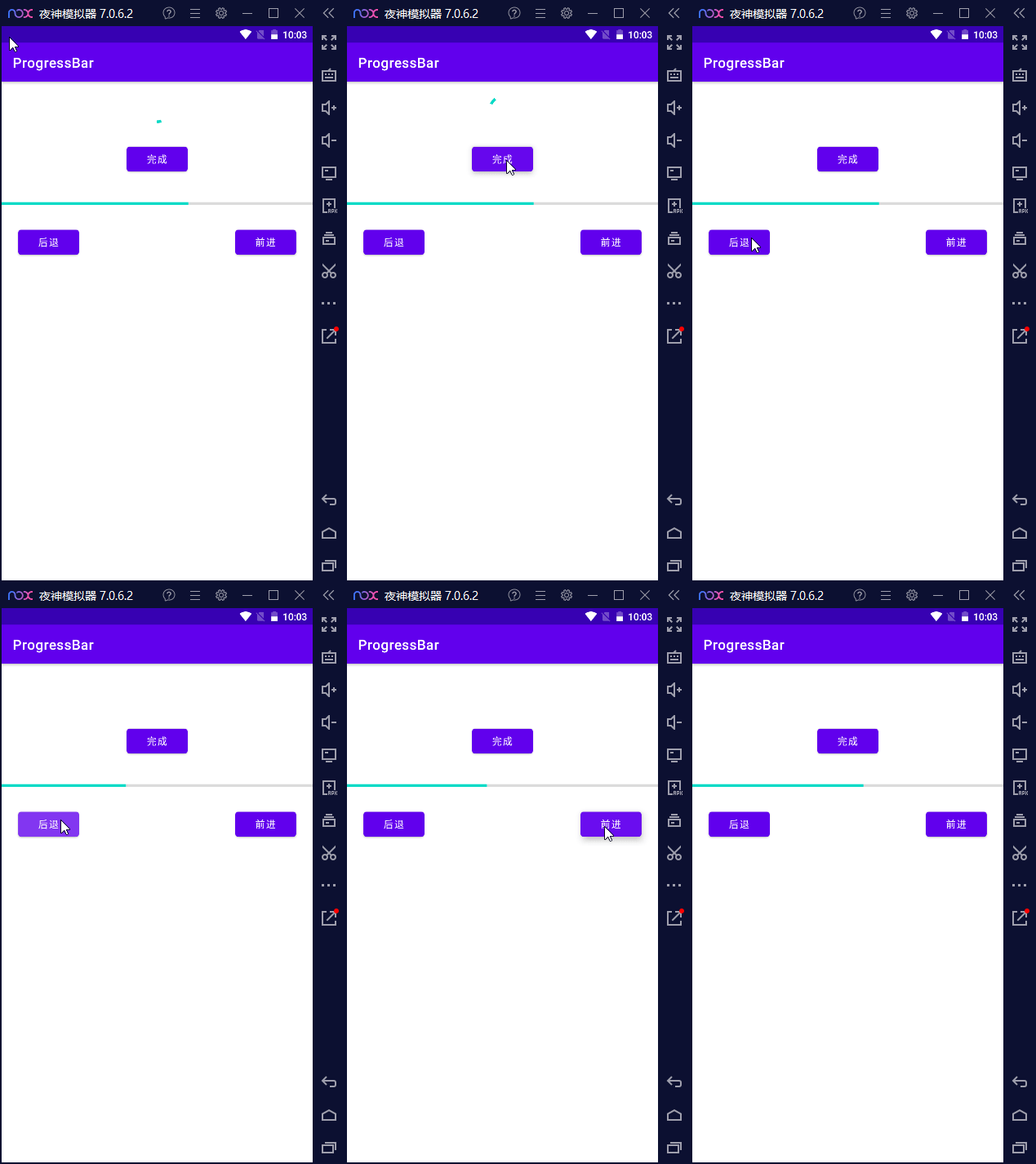
运行应用
总结
- 进度条 ProgressBar 可以用于显示任务的完成进度。
- 进度条可以根据需要设置样式。
- 可以通过设置进度值来更新进度条的显示。
- 可以通过设置最大进度值来定义进度条的范围。
评论
有疑问或建议?请在下方评论区留言!